Direct answer
Learn how to scan and generate QR codes on Android, validate decoded content, choose error correction, preserve the quiet zone and export reliable print-ready assets.
From automotive tracking to Android cameras
DENSO WAVE developed QR Code in 1994 to identify automotive parts quickly from multiple directions. Standardisation and widespread phone cameras later turned the same two-dimensional symbol into a practical carrier for web links, text, Wi-Fi profiles and product identifiers.
- Open adoption
- QR Code was standardised internationally as ISO/IEC 18004, allowing independent encoders and decoders to interoperate around the symbol structure.
- Finder patterns
- The three prominent corner patterns help a decoder locate and orient the symbol without requiring the user to hold it at one exact rotation.
Build a reliable Android scan workflow
A scanner needs camera frames with enough module detail, correct rotation and usable focus. Configure the decoder for expected formats, analyse frames away from the main UI path and release each image buffer promptly so camera backpressure does not turn a quick scan into a frozen preview.
- Format filter
- Restricting detection to QR when no other formats are needed can reduce unnecessary work and simplify the result contract.
- Frame strategy
- For real-time analysis, keep only the latest frame while processing instead of queuing stale images that no longer match the visible camera view.
Position, focus and light for faster decoding
Place the complete code inside the viewfinder with its clear border visible, then adjust distance until the camera can resolve individual modules. Even illumination, a clean lens and a steady phone usually matter more than extreme image resolution for an ordinary close-range scan.
- Pixel detail
- Google recommends enough pixels for the smallest meaningful barcode element; dense symbols require more image detail than short, low-version codes.
- Glare
- Tilt the phone or light source when glossy packaging creates a bright reflection that hides finder patterns or data modules.
Treat decoded content as untrusted input
Scanning proves that the camera decoded a symbol, not that its destination is safe. NFCMagic should display the raw or normalized result, classify common types and require deliberate navigation when a URL, phone action or application route could leave the scanner.
- Host visibility
- Show the effective HTTPS host clearly before opening it, especially when the printed label could have been replaced or covered.
- No automatic execution
- Unknown schemes and embedded commands belong in review or copy workflows rather than immediate background actions.
Generate the smallest practical QR payload
Short, stable content produces fewer modules and gives each module more physical space at a fixed print size. For web campaigns and product labels, encode a durable HTTPS resolver instead of a long tracking URL that makes the symbol unnecessarily dense and difficult to migrate.
- Version growth
- QR versions run from 1 to 40 and add modules as data and error-correction requirements increase.
- Stable destination
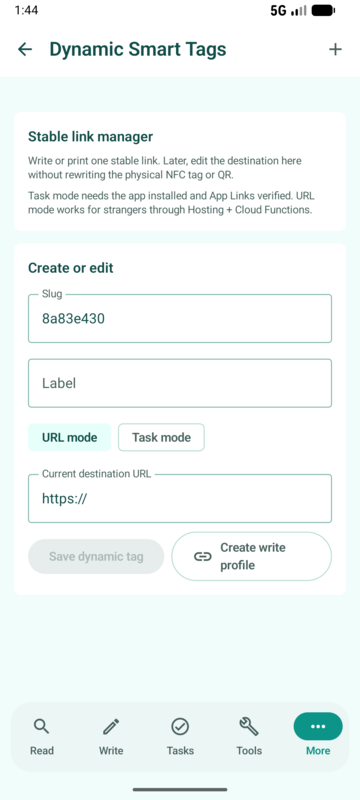
- A controlled resolver lets the owner update the final page later without reprinting the code or rewriting a paired NFC tag.
Choose an error-correction level deliberately
QR provides Levels L, M, Q and H, trading capacity for recovery from damaged codewords. Higher correction can support harsher environments or a carefully sized logo, but it also increases symbol density; select it alongside final dimensions and actual print tests.
- Typical default
- DENSO WAVE identifies Level M, approximately fifteen percent restoration, as a common general-purpose choice.
- Logo constraint
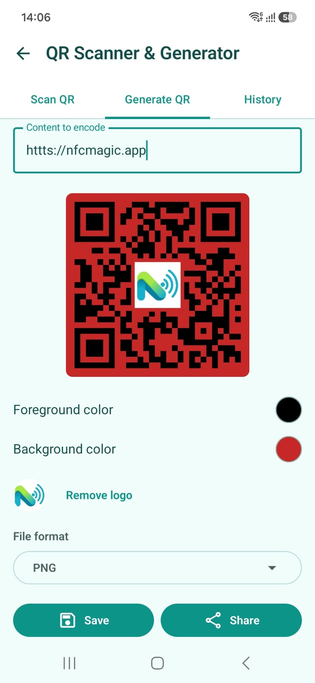
- A center logo intentionally destroys modules, so use a higher correction level, keep the obstruction small and verify multiple printed samples.
Protect the four-module quiet zone
The clear margin surrounding a QR code is part of reliable symbol detection, not decorative padding. DENSO WAVE specifies a quiet zone four modules wide on every side, so backgrounds, borders, text and logos must remain outside that area.
- Module-based sizing
- Calculate margins from the module size rather than applying an arbitrary number of image pixels before print scaling.
- Layout handoff
- Export the code with its quiet zone and tell designers not to crop it when placing the asset into packaging or a poster.
Use color and logos without breaking contrast
Dark foreground modules on a light, visually quiet background remain the most robust arrangement. Brand colors can work when luminance contrast is strong, but gradients, transparent backgrounds and light-on-dark inversion need broader device testing because scanner implementations differ.
- Finder integrity
- Never cover or reshape the three position-detection patterns, since they establish the symbol geometry for the decoder.
- Accessible context
- Print a human-readable action and destination context near the code so people know why they are scanning and have a fallback.
Export and test the production asset
Use SVG when the print workflow supports vectors and a lossless raster format when it does not. Avoid repeated JPEG recompression around crisp module edges, preserve the intended aspect ratio and scan the final physical proof rather than approving only an enlarged screen preview.
- Device sample
- Test several Android camera and scanner implementations because focus, exposure and decoding libraries are not identical.
- Distance sample
- Validate at the intended viewing distance, lighting and surface curvature instead of relying on a desktop scan from a perfect source image.
Pair QR and NFC around one destination
NFC gives a tactile tap while QR provides a visible camera fallback. Encoding the same stable HTTPS destination in both channels reduces content drift, simplifies analytics and lets the product serve phones without NFC without maintaining a second experience.
- One resolver
- Use one canonical landing URL and attribute the entry channel separately only when measurement has a legitimate purpose.
- Verified routing
- Android App Links can route an approved HTTPS domain into the installed app while retaining a usable web fallback.
Quick reference
| Design choice | Recommended baseline | Validation |
|---|---|---|
| Payload | Short stable HTTPS URL | Resolve and review final host |
| Error correction | Level M for ordinary use | Raise only for tested conditions |
| Margin | Four clear modules on every side | Inspect final layout and crop |
| Output | SVG or lossless raster | Scan physical proofs on several phones |
Related NFCMagic app screens
These screenshots connect this how to scan and generate QR codes on Android guide to the related Android workflow in NFCMagic. They show the matching screens in the NFCMagic Android app.
Frequently asked questions
Does Android need a separate app to scan QR codes?
Many camera apps scan QR natively; a dedicated scanner adds controlled history, content review and generation in the same workflow.
Which QR error-correction level should I use?
Level M is a common baseline, while Q or H may suit tested damage or logo requirements at the cost of a denser symbol.
How much empty space should surround a QR code?
Preserve a quiet zone at least four modules wide on every side of the symbol.
Is a QR code safe because it scans successfully?
No. Successful decoding says nothing about destination trust, so review the effective host before opening an unfamiliar link.
Primary technical sources
- Google ML Kit: Scan barcodes on Android — Official Android barcode-scanning API, format selection, image requirements and real-time processing guidance.
- DENSO WAVE: History of QR Code — Primary history of QR Code development for automotive production in 1994.
- DENSO WAVE: QR Code standardisation — QR versions, data capacity, error-correction levels and ISO/IEC 18004 standardisation.
- DENSO WAVE: QR error correction — Primary explanation of Reed-Solomon restoration and Levels L, M, Q and H.
- DENSO WAVE: Determining QR code area — Official module sizing and four-module quiet-zone guidance for print production.