Fix tag lost, unsupported tag, capacity and write-protection errors.
Help center
The complete NFCMagic help guide for NFC tags, QR codes and Android automation
A step-by-step manual for every NFCMagic area: what each screen is for, the exact steps to use it, practical tips from real deployments, and fixes for the errors you are most likely to see.
Help paths
The help center points users to the right guide before they get stuck.
Search engines and AI assistants understand support pages better when troubleshooting, feature pages and how-to articles are connected with descriptive anchors.
Avoid accidental writes and permanent read-only mistakes.
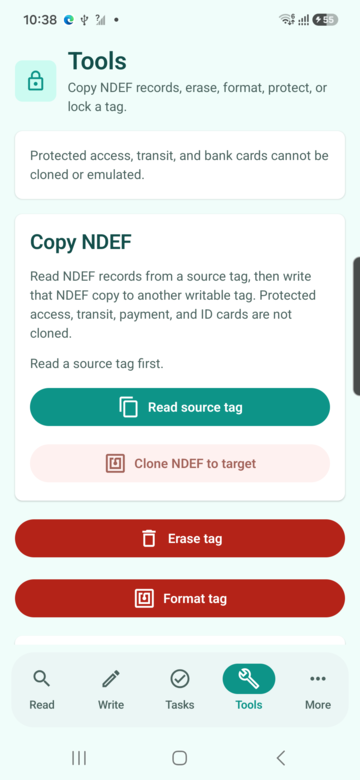
Understand why protected cards cannot be cloned by normal Android apps.
Open short answer-first support for common NFCMagic questions.
Getting started: NFC on Android
NFCMagic needs NFC hardware and the NFC radio turned on. Almost all Android phones since 2013 have an NFC chip; some budget models do not.
Technical background
NFC (Near Field Communication) is a short-range 13.56 MHz radio standard, readable only within a few centimeters. Android exposes it through the android.nfc API, and NFCMagic uses reader mode (NfcAdapter.enableReaderMode) while a scan screen is open, which gives a more predictable read than relying on background tag dispatch. Not every Android phone ships an NFC chip — that is a hardware decision made by the manufacturer, not something any app can add.
Example scenarios
- A new employee unboxes a company phone, is unsure whether NFC is supported, and opens NFCMagic to get an honest yes-or-no answer instead of hunting through a spec sheet.
- A retail associate switches NFC on for the first time to start testing NFCMagic against a batch of product tags before a launch.
Step by step
- Open Android Settings, search for "NFC" and turn the NFC switch on. On most phones this lives under Settings > Connected devices > Connection preferences > NFC.
- Install NFCMagic and open it. If your device has no NFC chip, the app shows an honest "NFC is not available" message instead of a fake scan screen.
- If NFC is present but switched off, NFCMagic shows "NFC is turned off" with a shortcut back to Android settings.
- Grant the camera permission only when you open the QR scanner; NFC itself does not need a runtime permission on modern Android.
Tips
- NFC antennas usually sit near the top-center or top-back of the phone, just under the camera bump on many models. Move the tag around slowly if a read does not trigger immediately.
- Phone cases with metal, magnetic clasps or built-in wallets can block the NFC signal. Remove thick cases if reads feel unreliable.
- NFCMagic uses Android reader mode while a scan screen is open, which is more predictable than relying on the system-wide NFC dispatch used by some other apps.
Troubleshooting
- The app says NFC is not available even though I can see an NFC toggle in settings. Some manufacturers show an NFC toggle even on hardware-limited variants sold in certain regions. Check your exact phone model's spec sheet for NFC support.
- Nothing happens when I tap a tag. Confirm NFC is on, remove thick cases, and hold the tag flat against the upper back of the phone for one to two seconds instead of a quick tap.
Read tags
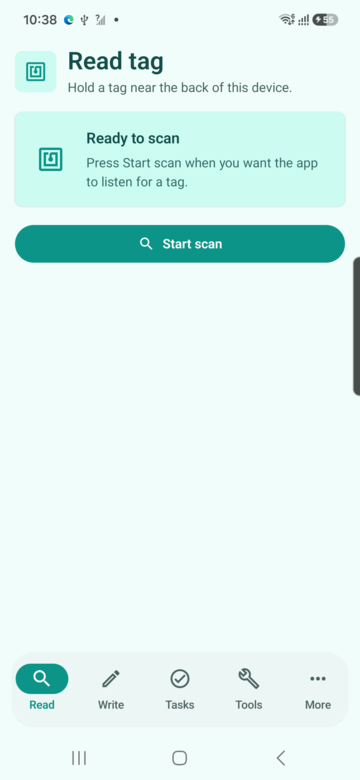
The Read tab is where you inspect an NFC tag before deciding what to do with it: tag type, UID, capacity, write access and every decoded NDEF record.
Technical background
Every NFC tag exposes a technology stack Android can query: a low-level chip type (NTAG213, NTAG215, NTAG216, MIFARE Classic, MIFARE Ultralight, FeliCa and others) and, where present, an NDEF (NFC Data Exchange Format) message made of one or more typed records such as Text, URI, Wi-Fi, Smart Poster, MIME or External. NFCMagic reads the UID, reports usable memory capacity, and decodes every NDEF record it finds without needing a password unless the tag itself was configured to require one.
Example scenarios
- A field technician taps an unlabelled roll of NTAG216 stickers to confirm they are genuinely blank and writable before a print run.
- A logistics manager scans an inbound pallet tag to read its embedded batch ID without opening a separate barcode scanner app.
Step by step
- Open the Read tab and tap Start scan. The screen switches to "Waiting for tag".
- Hold one NFC tag steady against the back of the phone until the result appears; avoid moving between multiple tags during a single scan.
- Review the tag type (for example NTAG213, NTAG215, NTAG216 or MIFARE Classic), UID, capacity, used bytes and whether the tag is writable or read-only.
- Expand each NDEF record to see its type (text, URI, Wi-Fi, contact, MIME or external) and decoded content.
- Tap Scan again only when you are ready for the next tag; this avoids double-reads from a tag that has not been moved away yet.
Tips
- If a tag shows "Read only: yes", it cannot be modified from the Write or Tools tabs. This is expected for factory-locked or intentionally protected tags.
- A tag reporting 0 NDEF records is not necessarily broken. NTAG/MIFARE tags can be blank, or the technology may not be Android-readable as public NDEF.
- The scan history under the Read tab keeps recent reads so you do not need to physically re-scan a tag to compare a previous result.
Troubleshooting
- The result shows "Unsupported" for tag type. The chip family is outside NFCMagic's currently supported list. Reading UID may still work even when full NDEF decoding does not.
- The scan seems to freeze on "Reading". Keep the tag completely still until a result or error appears; movement mid-read is the most common cause of a stuck read.
Write NDEF (Write composer)
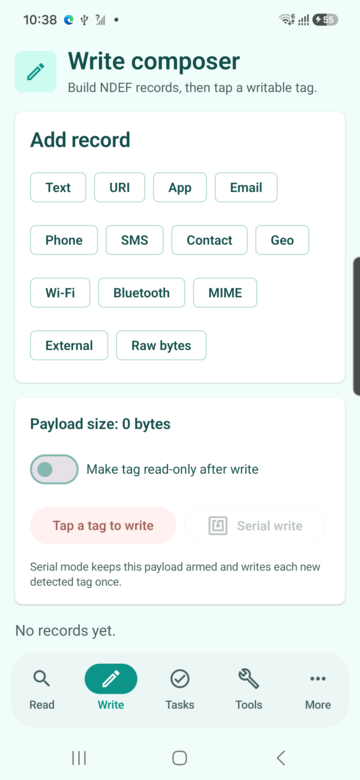
The Write tab composes NDEF payloads from text, URL, Wi-Fi, contact, geo, app-launch, MIME or raw records, then writes them to a tag once or repeatedly.
Technical background
Writing a tag encodes one or more NDEF records into its user memory area, which is smaller than the chip's total memory since a few reserved pages handle locking and configuration. Record types follow different byte-level specs — a URI record uses a compact well-known-type prefix table, while a Wi-Fi record follows the Wi-Fi Alliance's NDEF handover format so Android's own share sheet can pick it up. NFCMagic checks the payload against the target tag's reported capacity before enabling the write button, so a write only starts once it can physically fit.
Example scenarios
- A cafe owner writes the same menu URL to fifty NTAG213 table tags in one sitting using serial write mode.
- A network installer writes a Wi-Fi credential record to a guest-room tag so visitors join the network with a single tap instead of typing a password.
Step by step
- Open the Write tab and add one or more records: choose the record type, fill in the required fields, and add more records if the tag should carry multiple pieces of content.
- Save the payload as a named profile if you plan to reuse it, or use it once without saving.
- Tap the write action only once the payload is valid; the button stays disabled while required fields are empty or invalid.
- Present a writable tag and hold it steady until NFCMagic confirms the write succeeded.
- Turn on serial write mode if you are writing the same payload to many tags in a row; the payload stays armed until you stop the mode.
Tips
- Check the tag's reported capacity in the Read tab before writing a large payload; NTAG213 (about 144 bytes usable) holds far less than NTAG216 (about 888 bytes usable).
- Making a tag read-only is permanent on most chips. Confirm the payload is exactly correct before using the read-only tools option.
- URL records should use a full https:// address; some readers and Android's own NFC dispatch expect a complete scheme to trigger a browser open.
Troubleshooting
- Write fails with a capacity error. The payload is larger than the tag's usable memory. Shorten the content, remove records, or use a higher-capacity tag such as NTAG215 or NTAG216.
- Write fails immediately. The tag may be read-only, password protected, or moved away before the write completed. Reconfirm with a Read tab scan.
Tasks: tap-triggered automation
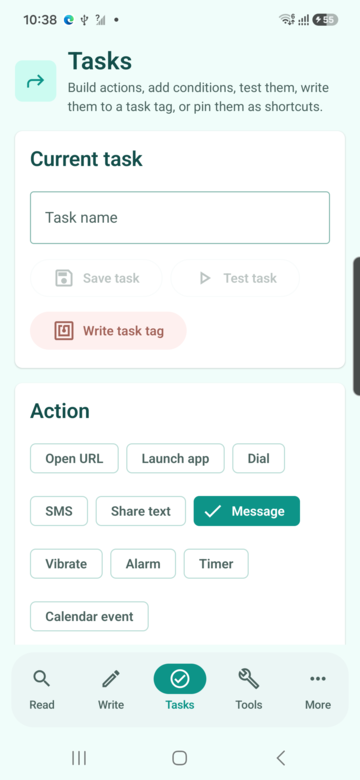
A task profile turns an NFC tap into one or more actions: open a URL, launch an app, dial a number, send an SMS, share text, show a message, vibrate, set an alarm, start a timer or create a calendar event.
Technical background
A task profile is a saved automaton: an ordered list of actions plus optional conditions such as a time window, day of week, battery level, network state or last-scanned UID. Conditions are evaluated locally on the device against current phone state at the moment of the tap, not by a server-side rule engine, so a task keeps working with no network connection.
Example scenarios
- A courier builds a task that opens the delivery app and shares a live ETA text, but only during working hours, bound to a van dashboard tag.
- A student sets a desk tag to open a study playlist and start a 25-minute timer only on weekday evenings.
Step by step
- Open the Tasks tab and create a new task profile, then add one or more actions in the order you want them to run.
- Add optional conditions such as time of day, day of week, battery level, network state or last-scanned UID so the task only runs when the context is right.
- Save the profile, then test it with the Run button before writing it to a physical tag.
- Write the task profile to a tag from the task screen, or bind it inside Dynamic Smart Tags or Tag Cycles for more advanced routing.
- Pin frequently used tasks as Android shortcuts if you want to trigger them without a physical tag as a fallback.
Tips
- Keep one task profile focused on one outcome. Several small, named profiles are easier to audit than one large profile with many unrelated actions.
- Actions that depend on smart-home systems, such as turning off lights, should go through a webhook or Home Assistant automation rather than assuming direct Android control.
- Android may still show its own confirmation dialog for sensitive actions such as sending an SMS; NFCMagic cannot and should not bypass that system protection.
Troubleshooting
- The task tag does not run automatically when tapped from outside the app. Automatic execution depends on Android's NFC intent dispatch and, where enabled, Auto-run. Open the app and use the Read or Tasks tab to run it manually if automatic dispatch is unavailable.
- An action fails silently. Check the task result message; NFCMagic reports which action failed instead of silently skipping it.
Tools: copy, erase, format, password and read-only
Tools contains direct tag operations. Some of them are reversible, and some are permanent, so the interface only enables a button when the required state exists.
Technical background
Tag Tools operates on raw or NDEF-level chip state rather than composing new content: Copy reads a source tag's NDEF bytes and rewrites them verbatim to a target, Format initialises a blank or foreign-format chip into a valid empty NDEF container per the NFC Forum Type 2/4 Tag Operation spec, and password protect/remove rely on manufacturer-specific PWD/PACK memory pages that only exist on NTAG21x-family chips, not on every NFC tag.
Example scenarios
- A workshop clones the exact NDEF payload from a certified master tag onto twenty replacement tags after an earlier batch got damaged.
- A security-conscious maker password-protects a set of asset tags so casual scanners can still read the public content but cannot silently overwrite it.
Step by step
- Copy NDEF: tap Read source, scan the tag you want to copy from, confirm the source content, then tap Clone and scan a separate writable target tag.
- Erase: scan a tag to remove its NDEF content. The physical tag remains usable afterwards for a new write.
- Format: prepares a blank or foreign-format tag so it can accept a fresh NDEF message.
- Password protect: enter an 8-character hex password (PASS) and a 4-character hex acknowledgement (PACK), then apply it to a compatible NTAG-style tag.
- Remove password: reverse a previously applied password on a compatible tag, if you still know the current password.
- Read-only: locks the tag's current NDEF content permanently. Use this only after the content is fully confirmed correct.
Tips
- Always run Copy NDEF's source read on the tag you are copying from before scanning a target; the Clone button only becomes available once a valid source exists.
- PASS and PACK only apply to compatible NTAG-style tags with password support; unsupported chips will report an error instead of silently doing nothing.
- Read-only and password protection change the tag permanently on most hardware. Test the exact payload on a spare tag first if you are unsure.
Troubleshooting
- Clone is greyed out. You need a successful source read first. Tap Read source and scan the original tag before scanning a target.
- Password protect fails with an invalid password error. PASS must be exactly 8 hex characters and PACK exactly 4 hex characters, for example A1B2C3D4 and 0000.
Batch write mode
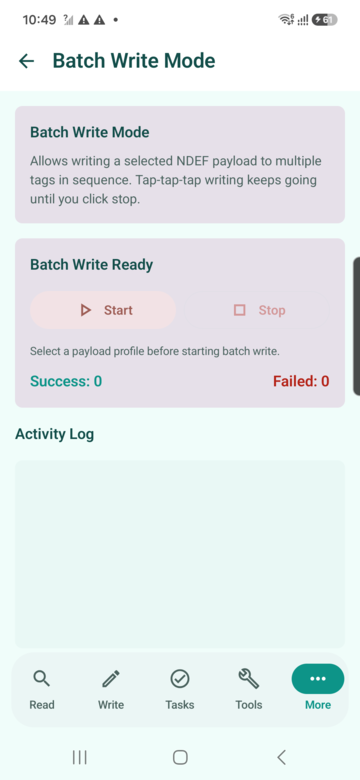
Batch write mode keeps one payload profile armed so you can write the same content to many NFC tags in a row without reselecting it each time.
Technical background
Batch mode keeps the same validated NDEF payload loaded in memory across many consecutive tag presentations, automatically re-arming reader mode after each success instead of returning to a setup screen. It is the same underlying write path as the Write tab; the only difference is the loop that keeps it ready for the next tag.
Example scenarios
- An event organiser batch-writes two hundred check-in wristband tags the night before a conference.
- A packaging line worker batch-writes a warranty-registration link onto every unit tag coming off a production run, watching the live success counter.
Step by step
- Open More > Batch Write Mode and select a saved payload profile.
- Tap Start; the screen shows an explicit "waiting for tag" state.
- Tap each blank or reusable target tag one after another; NFCMagic counts successes and failures live.
- Tap Stop when the batch is complete and review the activity log for any tag that failed.
Tips
- Batch write mode is a Pro feature; free accounts can prepare payload profiles but need to upgrade to run repeated batch writes.
- Keep the batch to tags of the same family and capacity so every tag in the run can hold the same payload without a capacity error.
- Review the failure count before assuming a batch finished cleanly; a failed tag still counts toward the total attempted.
Troubleshooting
- Some tags fail partway through a large batch. Check whether failing tags are a different chip family or capacity than the rest of the batch, since a mismatched payload size is the most common cause.
Tag Cycles: first tap, second tap, third tap
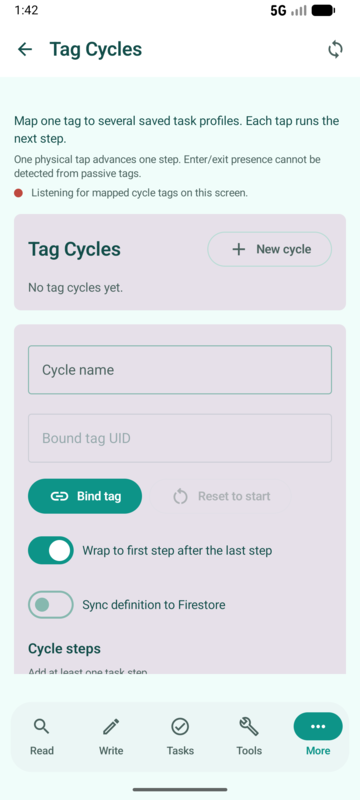
Tag Cycles bind one physical NFC tag to a sequence of saved task profiles. Each successful tap advances to the next step, then loops or stops depending on the cycle configuration.
Technical background
A cycle stores a step index against the tag's UID, or a generated cycle key written to the tag, so the app knows which task profile to run on the next tap. Because the state lives with the cycle record rather than being re-derived from tag content, cycles can advance even on tags with very little free memory.
Example scenarios
- A shared meeting-room tag cycles between "book this room", "start the meeting timer" and "end and release the room" across three consecutive taps.
- A gym locker tag cycles from check-in, to start-session, to check-out, so one sticker replaces three separate stations.
Step by step
- Open More > Tag Cycles and create a new cycle.
- Add two or more existing task profiles as ordered steps.
- Bind the cycle to a physical tag by tapping it from the cycle screen, or generate a fresh tag key.
- Tap the bound tag once to run step one, tap it again later to run step two, and so on; the cycle can loop back to step one or stop at the end.
- Use Reset from the cycle screen if you want the next tap to restart from step one.
Tips
- Tag Cycles are ideal for one physical location with a natural sequence, such as a bedside tag for night mode then morning mode, or a workstation tag for check-in then inspection then complete.
- Keep each cycle step's task profile independently testable so you can debug one step without retapping the whole sequence.
Troubleshooting
- Tapping the tag always runs step one. Check whether the cycle is configured to loop or reset; a debounce window also prevents two extremely fast taps from counting as two separate steps.
Friction-free Auto-run
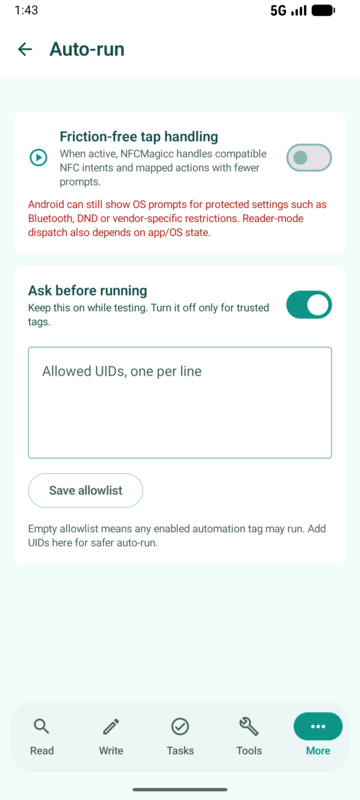
Auto-run keeps NFCMagic explicitly active so a trusted, known tag can run its task with fewer manual steps, while keeping a visible on/off state and a safety net for sensitive actions.
Technical background
Auto-run relies on a foreground service with a persistent, visible notification, a deliberate Android requirement for any app doing work without an open screen. The trusted-tag allowlist and ask-first controls exist because a background-triggered action carries more risk than one confirmed from an open scan screen; Auto-run narrows that risk to tags you have explicitly named as trusted.
Example scenarios
- A driver sticks a trusted tag to the dashboard so tapping their phone against it opens navigation and starts a driving-mode timer without unlocking the phone first.
- A night-shift worker arms Auto-run for a bedside tag that silences notifications and sets a wake alarm with one tap, half-asleep.
Step by step
- Open More > Auto-run and turn the mode on; a persistent notification confirms it is active.
- Add trusted tag UIDs to the allowlist if you want Auto-run to react only to specific known tags.
- Choose ask-first mode for sensitive actions such as opening a URL or sharing a message, so you see a confirmation before it runs.
- Tap a trusted tag; NFCMagic detects it and runs the mapped task route.
- Turn Auto-run off from the app or the notification when the physical context no longer needs it, for example after leaving a workshop.
Tips
- Use Auto-run for daily, known tags such as a bedside, car or desk tag, not for random public tags you do not control.
- Pair Auto-run with Tag Cycles when the same physical tag should behave differently on the first, second and later taps.
- Auto-run cannot bypass Android's own security prompts; where the OS requires confirmation, the app surfaces that honestly instead of pretending to skip it.
Troubleshooting
- Auto-run is on but a tag still does not run automatically. Confirm the tag UID is on the trusted allowlist, and check whether ask-first mode is waiting for a confirmation tap you may have missed.
AI Tap Studio
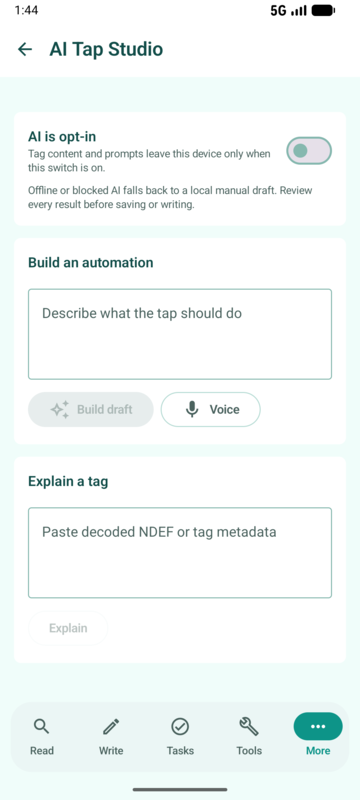
AI Tap Studio is an opt-in assistant that drafts task profiles from plain-language prompts, explains public tag content, checks URL safety and suggests practical tap ideas using Firebase AI.
Technical background
AI Tap Studio sends your prompt, and in Explain mode any decoded public tag text, to a Firebase AI (Gemini) endpoint, which returns a structured draft that NFCMagic maps onto the same Task engine data model used for manually built tasks, not a separate automation format. Nothing is sent unless you explicitly open a Build, Explain, Check URL or Suggest session; the feature is fully opt-in.
Example scenarios
- A non-technical shop owner types "when a customer taps this, open our returns policy and copy our support email" and gets a working task draft in seconds.
- A safety-conscious user pastes a shortened URL from an unfamiliar tag into Check URL mode before letting Auto-run open it automatically.
Step by step
- Open More > AI Tap Studio and choose Build, Explain, Check URL or Suggest mode.
- In Build mode, describe the routine in plain language, for example "when I get in the car, open maps and start a timer".
- Review every field in the generated draft, edit anything that is wrong or unclear, then save it into the existing Tasks engine.
- In Explain mode, paste decoded public NDEF text or a URL to get a plain-language summary before trusting the tag.
- In Check URL mode, review the safety assessment before allowing an automatic open through Tasks or Auto-run.
Tips
- Treat every AI draft as a starting point, not a finished automation. Save only after you understand and agree with each action.
- Never paste protected-card data, secret keys, passwords or another person's private information into an AI Tap Studio prompt.
- Suggest mode is useful when you are unsure what a table tag, workshop tag or business card tag should actually do.
Troubleshooting
- The AI draft only produces a generic message action. This is the safe local fallback used when the AI response is unavailable or unclear. Try a more specific prompt, or build the task manually from the Tasks tab.
Dynamic Smart Tags
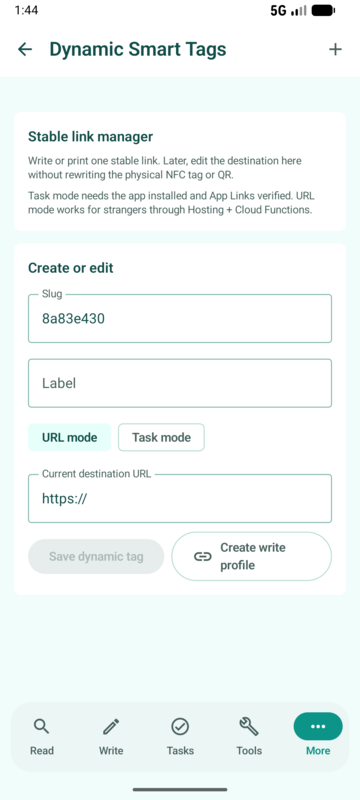
Dynamic Smart Tags create a stable NFC and QR link that can resolve to a different URL or task later, without rewriting the physical tag.
Technical background
A Dynamic Smart Tag writes a stable identifier, an NFCMagic-hosted App Link and matching QR code, to the physical tag, while the real destination (a URL or a task reference) lives in Firestore and can change at any time from the manager. Android resolves the App Link through a digital asset links file tying the domain to NFCMagic's signing certificate, so installed users open the app directly instead of a browser.
Example scenarios
- A restaurant swaps its table-tag destination from the lunch menu to the dinner menu automatically on a schedule, without touching a single physical sticker.
- A product brand redirects a first-run welcome page to a warranty-registration page a month after launch, using the exact same printed NFC and QR label.
Step by step
- Open More > Dynamic Smart Tags and create a new smart tag with a short slug and label.
- Choose URL mode for a public redirect, or Task mode so installed Android users open NFCMagic and run a saved task.
- Save the smart tag; NFCMagic generates a QR code and a writeable NDEF profile for the same stable link.
- Write the stable link to a physical NFC tag from the write profile, and print or display the generated QR code alongside it.
- Return to the manager at any time to change the destination URL or task without touching the physical tag again.
Tips
- Use URL mode for anything a stranger without the app should be able to open, such as a menu, product manual or booking page.
- Use Task mode only for internal, installed-app workflows such as maintenance checklists for authorised staff.
- Pairing NFC and QR on the same stable link covers both tap-capable phones and camera-only devices with one printed label.
Troubleshooting
- The smart link opens a browser instead of the app on a phone that has NFCMagic installed. Android App Link verification depends on the hosting domain serving a valid digital asset links file matching the app's signing certificate; this is a one-time setup step for the app owner, not something the end user can fix.
QR scanner and generator
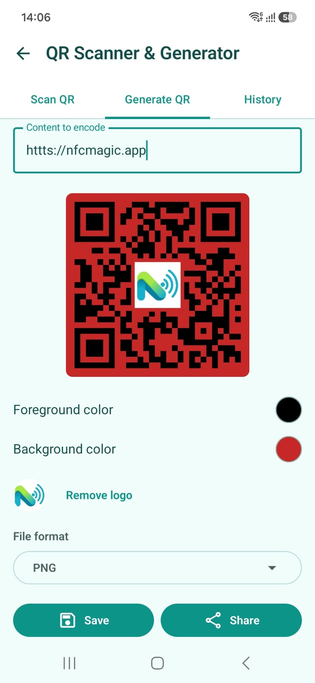
The QR area scans QR codes with the camera and generates new QR codes from text, a URL or a Dynamic Smart Tag link, so every NFC workflow can also have a camera-friendly fallback.
Technical background
Scanning uses CameraX with ML Kit's on-device barcode analyser; no frame ever leaves the phone. Generating a code renders a standard QR matrix per the ISO/IEC 18004 spec, with error-correction levels L, M, Q or H; adding a centre logo automatically steps up to level H so enough redundant data survives the occluded area for scanners to still recover the payload. Codes can also be exported as SVG, a vector format that stays crisp at any print size.
Example scenarios
- A market stallholder scans a supplier's QR invoice directly into NFCMagic instead of retyping the reference number.
- A designer generates a branded QR code with a centre logo for a poster, exports it as SVG for a print shop, then pairs the same URL onto an NFC tag on the same poster for phones that prefer a tap.
Step by step
- Open More > QR Scanner and Generator and choose the Scan or Generate tab.
- In Scan mode, grant camera access once, then point the camera at a QR code; the decoded content appears immediately with copy and share actions.
- In Generate mode, type or paste the content, choose foreground and background colors, optionally add a center logo, then preview the result live.
- Save the QR code to build a small personal history, or export it as PNG, JPEG, WEBP or scalable SVG to your device.
- Pair the same content with an NFC tag from the Write tab so both channels point to the same destination.
Tips
- Keep enough contrast between the foreground and background color, and keep any center logo small, so the code still scans reliably after printing.
- A QR code with a logo uses a higher error-correction level automatically so the center overlay does not break scanning.
- Free accounts can generate a limited number of QR codes; unlimited generation is a Pro feature.
Troubleshooting
- A printed QR code will not scan. Check contrast, avoid very small print sizes, and avoid glossy laminate that creates glare over the code.
- The camera does not open in Scan mode. Grant the camera permission from Android settings if it was previously denied.
Scan history
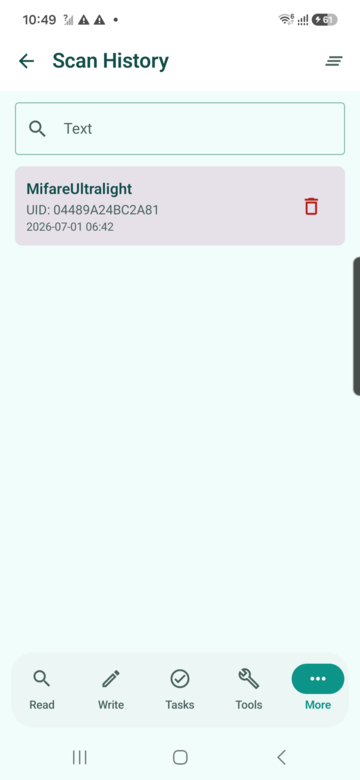
Scan history keeps a local record of previous NFC reads and QR scans so you can review a result without physically re-scanning the tag or code.
Technical background
History is a local, on-device log, not synced to any server, of prior Read and QR results, stored so a previous decode can be reviewed without the physical tag or code being present again.
Example scenarios
- A support agent pulls up yesterday's scan of a customer's tag mid-call instead of asking them to walk back to the shelf.
- A field auditor reviews a full day's scan history at the end of a site visit to compile a report.
Step by step
- Open the Read tab or the QR area and scroll to the history list below the main action.
- Search or scroll to find a previous entry by UID, tag type or decoded content.
- Tap an entry to review the full decoded result again.
- Delete individual entries or clear the full history from the same screen when you no longer need the record.
Tips
- History is stored locally on the device. Clearing app data or uninstalling NFCMagic removes it.
- Use history during support conversations to compare what a customer or colleague scanned without needing the original tag in hand.
Tag emulation (HCE)
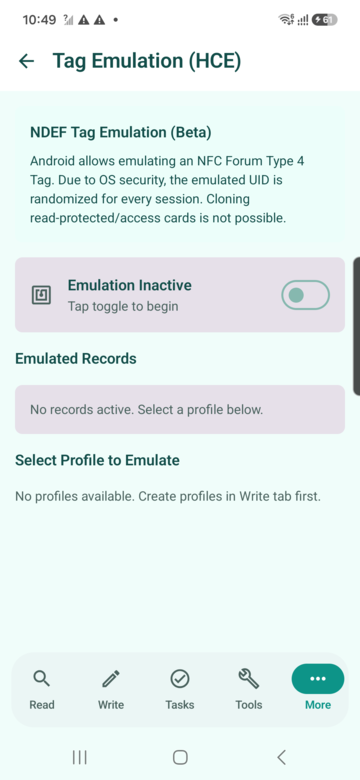
Host Card Emulation lets NFCMagic present a saved NDEF profile to a compatible reader from the phone itself, within Android's HCE platform limits.
Technical background
Host Card Emulation (HCE) is an Android platform feature that lets an app register as a virtual smartcard for a chosen AID (Application Identifier), answering an external reader's APDU commands entirely in software. Android intentionally restricts HCE from spoofing a fixed hardware UID or replicating key-based secure elements, so NFCMagic's HCE mode is scoped to NDEF Type 4 Tag emulation, sharing public content the same way a physical tag would.
Example scenarios
- A conference speaker demos a contact-sharing tap using nothing but their phone's screen, no physical tag on hand.
- A QA engineer emulates several saved NDEF profiles in a row to test a reader's compatibility without carrying a box of physical tags.
Step by step
- Open More > Tag Emulation and select a saved NDEF profile to emulate.
- Start the emulation session and present the phone to a compatible reader as you would a physical tag.
- Stop the session when finished; emulation does not run permanently in the background.
Tips
- HCE on Android does not let an app set an arbitrary secure-card UID or emulate protected, key-based card systems. Expect Type 4 style NDEF sharing, not access-card cloning.
- Use HCE for demos, reader compatibility testing and sharing a contact or URL without a physical tag in hand.
Troubleshooting
- A secure access-card reader does not accept the emulated tag. This is expected. NFCMagic's HCE mode shares public NDEF-style content and cannot clone protected access, payment or transit credentials.
Memory dumps
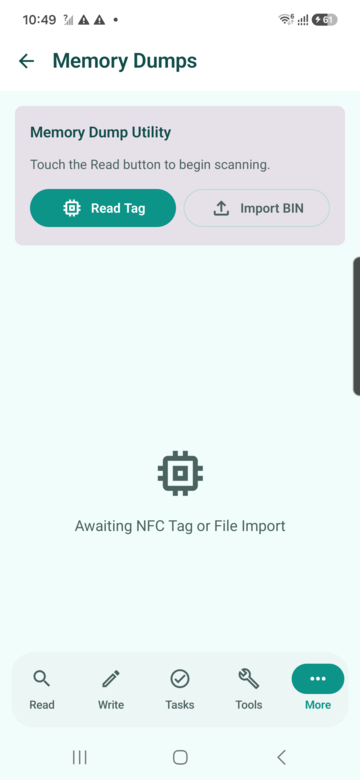
Memory dump tools read, import, edit, export and write full memory contents for supported tags, intended for diagnostics on tags you are authorised to test.
Technical background
A memory dump captures a tag's full addressable page layout, not just the NDEF-decoded view, because page structure such as lock bytes, configuration pages and user memory differs by chip family. BIN files are a raw byte-for-byte capture; the Flipper-format export matches the layout used by Flipper Zero's NFC app for cross-tool comparison.
Example scenarios
- A hardware researcher exports a suspicious tag's full dump to compare its lock-byte configuration against a known-good reference.
- A repair technician imports a previously exported dump to restore a tag to a known state after a failed write.
Step by step
- Open More > Memory Dumps and read a compatible tag to capture its raw memory.
- Inspect the hex view, or import a previously exported dump file for comparison.
- Edit specific pages if you are testing a controlled scenario, then export as BIN or a Flipper-style file for records.
- Write an edited or imported dump back to a compatible blank tag when you need to reproduce a known state.
Tips
- Use memory dumps for labs, diagnostics and reproducible testing, not for handling data you are not authorised to access.
- Keep exported dump files organised by tag family, since page layouts differ between chip types.
Product authenticity
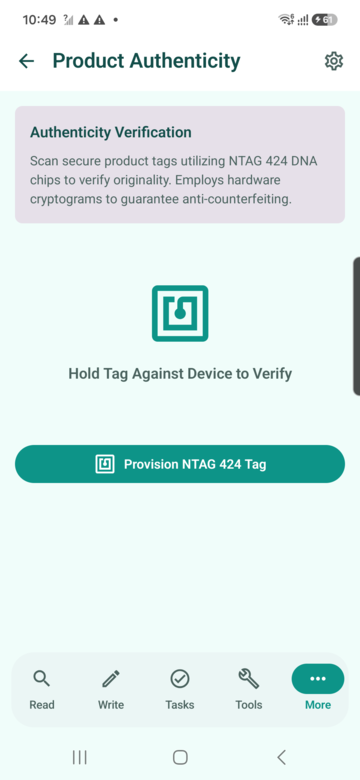
The authenticity flow supports NTAG 424 DNA SUN/CMAC style verification so a tap can return a genuine, counterfeit, pending or tamper result for a secure product tag.
Technical background
The flow is built around NTAG 424 DNA's SUN (Secure Unique NFC) messaging: each tap generates a fresh CMAC (cipher-based message authentication code) derived from an AES key baked into the chip, so the URL or payload changes on every scan and cannot be copied to a cloned tag. NFCMagic verifies that CMAC against the backend rather than trusting anything printed or stored locally on the phone; a pending result specifically means the verification call could not reach the server, not that the tag failed.
Example scenarios
- A shopper taps a bottle's secure tag before buying and sees a clear genuine result instead of trusting a hologram sticker.
- A brand-protection officer investigates a store reporting repeated counterfeit scans on one specific product batch.
Step by step
- Open More > Product Authenticity and tap a provisioned secure tag.
- NFCMagic reads the tag's dynamic, per-tap encrypted message and checks it, showing a genuine, counterfeit, pending or tamper result.
- Pending results mean the device was offline; sync again once you have connectivity so the check can complete.
Tips
- A working authenticity check requires the tag to be correctly provisioned first, with proper key handling on the backend; the Android side alone cannot guarantee trust.
- Treat repeated counterfeit or tamper results on the same product line as a signal to escalate to the brand protection team.
Troubleshooting
- Every scan returns pending. The device has no network connection. Reconnect and open the pending item again, or use syncOfflinePendingVerifications from a screen that exposes it.
NTAG 424 DNA provisioning
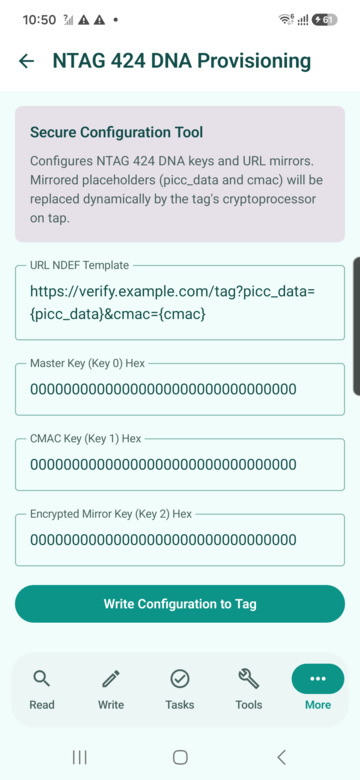
Provisioning configures a real NTAG 424 DNA tag with a secure URL mirror template and AES keys so it can later be checked by the authenticity flow.
Technical background
Provisioning writes AES-128 keys and a URL mirror template, placeholders the chip fills in per tap such as the UID and CMAC, into an NTAG 424 DNA chip's configuration area, following NXP's SUN message specification. This step defines the trust root for every later authenticity check on that tag, so key handling at provisioning time is what the whole verification chain depends on.
Example scenarios
- A packaging engineer provisions the first one hundred units of a new product line, then immediately tests each one against the Product Authenticity flow before shipment.
- A trusted operator rotates to a new key template for a second production run to keep batches cryptographically separate.
Step by step
- Open More > Provision NTAG 424 DNA as a trusted operator.
- Select or create a key template and the URL mirror pattern the tag should encode.
- Present the physical NTAG 424 DNA tag and confirm the write; this changes real secure configuration on the chip.
- Test the freshly provisioned tag immediately with the Product Authenticity flow before deploying it to a product line.
Tips
- Provisioning is an operator-level workflow. Treat key material with the same care as any other production secret.
- Validate a small test batch before provisioning a full production run.
Digital business card
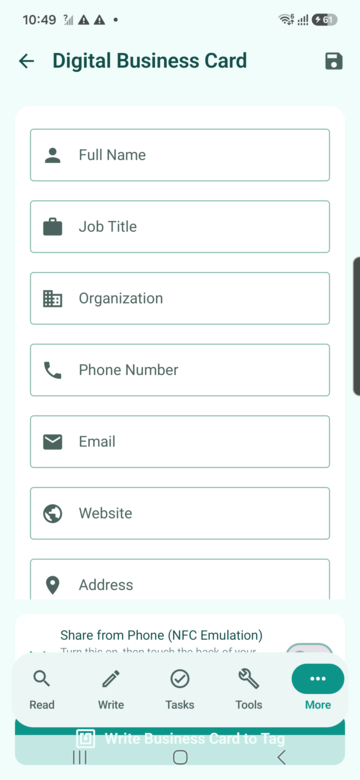
The business card tool writes contact details to an NFC tag and can share the same profile directly from the phone without a physical tag.
Technical background
The card tool composes a standard vCard-compatible NDEF payload, covering name, phone, email, URL and social links, that any NFC-capable phone's native tap-to-add-contact flow can read, not just NFCMagic users. Pairing it with a Dynamic Smart Tag link keeps a printed card current by changing the underlying content instead of reprinting.
Example scenarios
- A consultant hands over a metal NFC card at a conference; the recipient's own phone offers to save the contact without installing anything.
- A recruiter updates their job title and phone number on a Dynamic Smart Tag business card the same week they change roles, with zero reprints.
Step by step
- Open More > Digital Business Card and enter name, phone, email, website and any social links.
- Save the profile, then write it to an NFC card tag from the same screen, or share it directly by phone.
- Update the saved profile any time a detail changes; a Dynamic Smart Tag link can keep an already-printed card current without reprinting.
Tips
- Pair a printed NFC business card with a Dynamic Smart Tag link if your role, phone number or portfolio link changes often.
Automation connectors
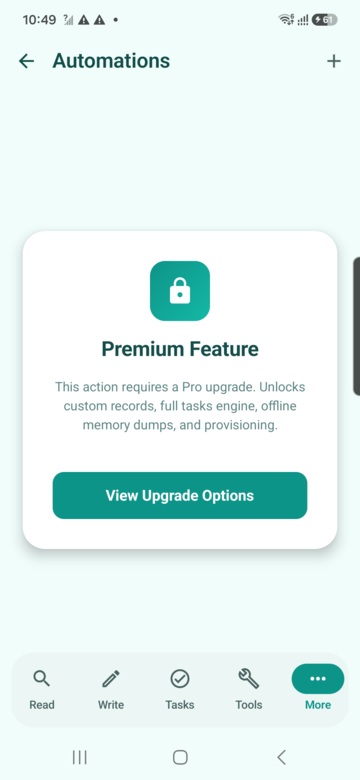
Automation connectors trigger a webhook, Home Assistant scene or MQTT-style topic from a tag tap, so an external system performs the actual action.
Technical background
Connectors bridge a physical tap to an external system Android cannot control directly: a webhook is a plain HTTPS POST to a URL you configure, a Home Assistant connector targets that platform's REST/automation API, and MQTT-style connectors publish to a topic on a broker you specify. NFCMagic's role ends at firing the request; the receiving system is responsible for the actual action such as lights, locks or dashboards.
Example scenarios
- A smart-office installer binds a desk tag to a webhook that logs occupancy into a facilities dashboard.
- A home automation enthusiast taps a hallway tag that publishes to an MQTT topic their existing Home Assistant setup already listens on.
Step by step
- Open More > Automations and add a connector: webhook URL, Home Assistant endpoint or MQTT topic.
- Bind the connector to a specific tag UID so only recognised tags can trigger it.
- Test the connector once with a known tag before relying on it for a live workflow.
Tips
- Automation connectors are the right place for smart-home or facilities actions that Android itself cannot perform directly, such as turning off networked lights.
Troubleshooting
- The webhook never fires. Confirm the tag UID matches the bound connector exactly and that the endpoint is reachable from the phone's current network.
Business analytics
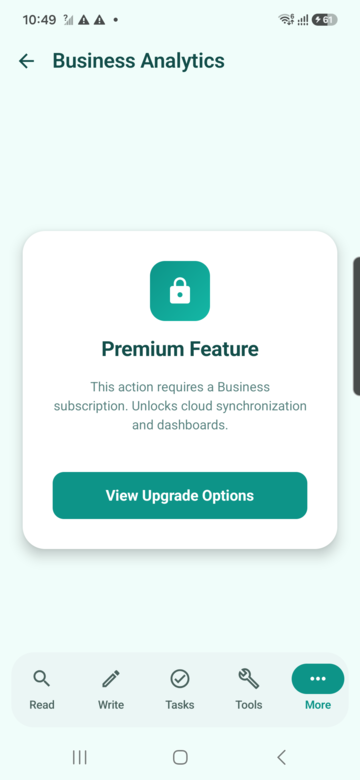
Analytics summarises tap totals, daily trends and product or campaign distribution so an owner can see which tags are actually being used.
Technical background
Analytics aggregates tap events recorded server-side whenever a Dynamic Smart Tag is resolved, grouped by tag, product or campaign as configured in the Dynamic Smart Tags manager. Because counting happens at resolution time in the backend, analytics only covers tags routed through Dynamic Smart Tags, not every raw NFC read performed in the Read tab.
Example scenarios
- A marketing lead compares scan volume between two competing shelf-talker designs during a two-week trial.
- An operations manager notices one tag's tap count flatline and dispatches someone to check whether the physical sticker was damaged or removed.
Step by step
- Open More > Business Analytics to see tap totals and recent trend charts.
- Filter by product, campaign or tag group where that structure has been set up in Dynamic Smart Tags.
- Use the trend to decide whether a tag, label or campaign needs to be replaced, repositioned or retired.
Tips
- Analytics is most useful when paired with Dynamic Smart Tags, since scan counts are tracked centrally for each managed link.
NFCMagic Pro
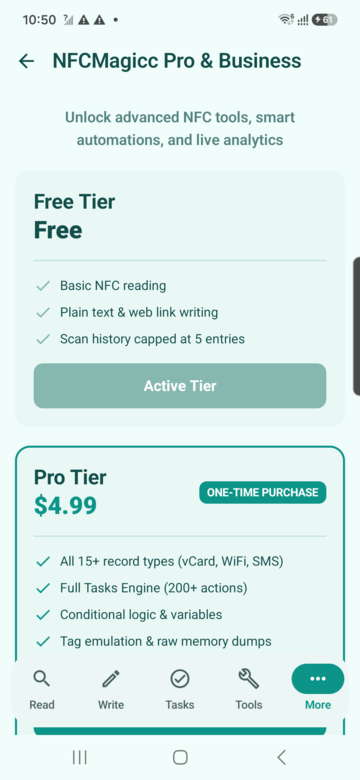
NFCMagic is free to install and use for core NFC reading, writing and single-tag workflows. A single $3 one-time Pro purchase unlocks every higher-volume and professional feature, with no subscription and no separate business tier.
Technical background
Pro is a single one-time Google Play purchase that flips an entitlement flag checked locally by the app before each gated workflow. There is no recurring subscription billing and no separate business-tier entitlement to manage.
Example scenarios
- A hobbyist writes a handful of tags for free, hits the QR generation limit, and unlocks everything for good with one $3 purchase.
- A small agency upgrades once and immediately gets Batch Write Mode, AI Tap Studio, Dynamic Smart Tags and Business Analytics together, without a separate enterprise sales conversation.
Step by step
- Open More > Upgrade to see the Free plan and the NFCMagic Pro plan side by side.
- Free covers unlimited NFC reading and writing, a limited number of saved QR codes, and single-tag task automation.
- Pro is a single $3 one-time purchase that unlocks Batch Write Mode, unlimited QR code generation, AI Tap Studio, Dynamic Smart Tags, automation connectors and business analytics together.
- There is no separate Business tier to compare: every professional and team-oriented workflow ships inside the one Pro purchase.
Tips
- Start on Free to validate your payload and task design, then upgrade once you are ready to scale to batch operations, AI-assisted automation or cloud-backed dynamic tags.
Troubleshooting common errors
Most NFC errors in NFCMagic map to one of a small number of honest, specific causes rather than a generic failure.
Technical background
NFC failures on Android surface through a small set of well-defined exceptions from the platform's TagLostException, IOException and security-check paths. NFCMagic maps each one to a specific, honest message instead of a generic "scan failed", so you know whether to retry, choose a different tag, or check a password.
Example scenarios
- An installer sees "Capacity exceeded" and immediately knows to switch from NTAG213 to NTAG216 rather than guessing at the payload.
- A support agent talks a customer through a "Tag lost" error over the phone by asking them to hold the tag still for two full seconds.
Step by step
- "Tag lost": the tag moved away from the phone before the operation finished. Hold it steady and retry.
- "Unsupported": the chip family or NDEF structure is outside what NFCMagic currently decodes or writes.
- "Security": Android blocked access to the tag, often because it needs a password NFCMagic does not have.
- "Malformed NDEF": the tag's stored message does not follow the NDEF specification correctly.
- "Write protected": the tag is locked read-only, either from the factory or from a previous read-only operation.
- "Capacity exceeded": the payload is larger than the tag's usable memory.
- "Invalid password": the entered PASS or PACK does not match the tag's configured value.
Tips
- Confirm the exact error text in the app before searching for a fix; each NFCMagic error has a specific, honest cause rather than a vague failure state.
- When in doubt, re-read the tag from the Read tab to refresh the write-access and capacity information before retrying a write.
Safety boundary
NFCMagic does not clone protected access cards, payment cards, passports, transit cards or any system that relies on secret keys, and it never claims otherwise.
Technical background
Protected credential systems, including payment cards (EMV), transit cards, access-control cards and passports, store secrets behind cryptographic key checks that Android's public NFC APIs deliberately cannot bypass. This is an OS and hardware-level boundary, not a limitation NFCMagic could lift by adding a feature; the app only ever operates on public NDEF content and open tag technologies within that boundary.
Example scenarios
- A curious user tries scanning their contactless bank card and correctly gets no readable content back, as expected.
- A developer evaluating NFCMagic for a security review confirms it cannot and does not attempt to clone an office access badge.
Step by step
- Reading a tag can detect its technology and, where public, its NDEF content, but protected card data stays encrypted and inaccessible.
- Tools such as Copy NDEF only operate on public, writable NDEF content between compatible tags, never on protected credentials.
- HCE emulation in NFCMagic cannot set an arbitrary secure-card UID or replicate a key-based access system.
Tips
- If a workflow cannot be completed safely or honestly, the correct product behaviour is to stop and explain why, not to fabricate a result.
App screenshots
Every major app screen and new workflow preview
Device captures are used where available. New M8 workflows also include app-style visual previews so the website explains the complete product surface without using unrelated images.
Read tags
Tag type, UID, NDEF records, capacity, write access
Scenario: A field technician taps an unknown label, confirms it is writable, checks capacity, and reads the public NDEF content before deciding whether it can be reused.
Write composer
Create NDEF payloads and save reusable profiles
Scenario: A product team prepares a URL, Wi-Fi credential or contact payload once, saves it as a profile, then writes it to a small batch of compatible tags.
Task automation
Build tap-triggered workflows with conditions
Scenario: A workshop user creates a tag that opens a job sheet, starts a timer, shares status text and only runs when the right network or time condition is met.
NFC tools
Copy NDEF, format, erase, protect and make read-only
Scenario: An installer reads a source NDEF tag, confirms the source payload is valid, then writes that public payload to a clean target tag with visible result feedback.
More workflows
History, HCE, QR, dumps, authenticity, cycles and analytics
Scenario: A power user opens advanced workflows from one menu instead of hunting through hidden settings.
Scan history
Search, inspect and clear previous tag reads
Scenario: A support engineer searches previous scans by UID, tag type or NDEF text and opens a past result without rescanning the physical tag.
Tag emulation (HCE)
Emulate selected NDEF profiles within Android HCE limits
Scenario: A developer selects a saved profile and tests an NDEF Type 4 style sharing flow against a reader while respecting Android UID limitations.
QR scanner and generator
Scan QR codes and generate QR content from text
Scenario: A product label can carry both NFC and QR so users without NFC still reach the same destination.
Batch write mode
Write one selected payload profile to many tags
Scenario: An operations team selects a saved payload, starts batch mode, then taps multiple blank tags and reviews success and failure counts.
Memory dumps
Read, import, edit, export and write supported memory dumps
Scenario: A lab user reads bytes from a compatible tag, exports a BIN or Flipper-style file, and inspects the hex view for diagnostics.
Product authenticity
Verify secure product tags with NTAG 424 DNA style flows
Scenario: A customer or inspector taps a secure product label and receives a clear genuine, counterfeit, pending or tamper result.
NTAG 424 DNA provisioning
Configure secure URL mirrors and AES keys for supported tags
Scenario: A trusted operator prepares a secure tag template with dynamic mirror placeholders and writes configuration to a real NTAG 424 DNA tag.
Digital business card
Create and write contact details to NFC business cards
Scenario: A consultant enters contact details once, saves them, then writes the card to an NFC tag or shares directly from the phone.
Automation connectors
Webhook, Home Assistant and MQTT-style automation setup
Scenario: A smart-space installer links a tag UID to a webhook or MQTT topic so a tap can trigger a room, asset or service workflow.
Tag cycles
One tag moves through multiple task profiles
Scenario: A single desk tag cycles through check-in, start focus mode and check-out actions, advancing one step per physical tap.
Friction-free Auto-run
Trusted taps can run task profiles with fewer manual steps
Scenario: A user enables Auto-run for a trusted bedside, car or workshop tag so NFCMagic can detect the tap, show honest status, and run the selected task route with ask-first safety controls.
AI Tap Studio
Use chat-style prompts to draft, explain and check tap workflows
Scenario: A user describes a routine in plain English, reviews the AI-generated task draft, edits any action fields, then saves the final profile into the existing Tasks engine.
Dynamic Smart Tags
Firestore-backed URL and task tags with QR and write profiles
Scenario: A restaurant, product team or installer writes one stable smart link to a tag, then changes URL mode or task mode later without replacing the physical tag.
Business analytics
View tap totals, daily trends and product distribution
Scenario: A business owner reviews scan trends and product shares to understand which tags or campaigns receive engagement.
NFCMagic Pro
One paid plan, $3 once, every professional workflow unlocked
Scenario: A power user hits the free Batch Write or QR generation limit and upgrades once to unlock every advanced workflow, with no separate business tier to compare.
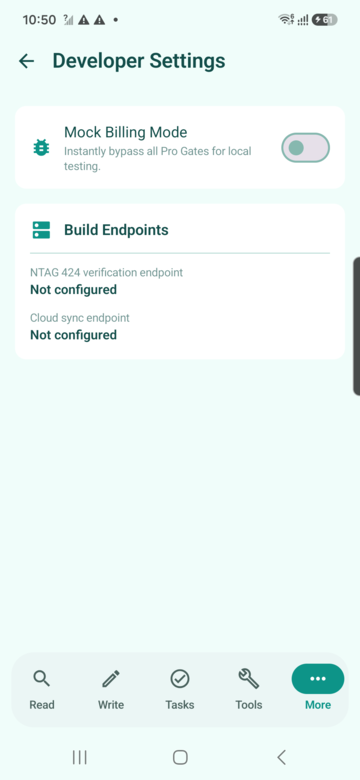
Developer settings
Mock billing and backend endpoint configuration
Scenario: A developer tests entitlement gates and backend endpoints locally before moving the Firebase and hosting configuration to production.