Create and publish your first restaurant menu from the Android app.
Restaurant Menu Maker for Android
Create a digital restaurant menu with QR, NFC and table ordering
Build a branded, mobile-friendly menu, publish it to a permanent web page, let guests order from their table, and manage service from NFCMagic or its secure restaurant dashboard.
One published menu for Standard users
QR code + NFC tag sharing
Mobile-friendly ordering
PDF menu download
Restaurant menu pathways
Connect your digital menu to QR codes, NFC tags and trackable campaigns.
NFCMagic brings menu publishing, table ordering, service requests and restaurant reporting into one Android-led workflow.
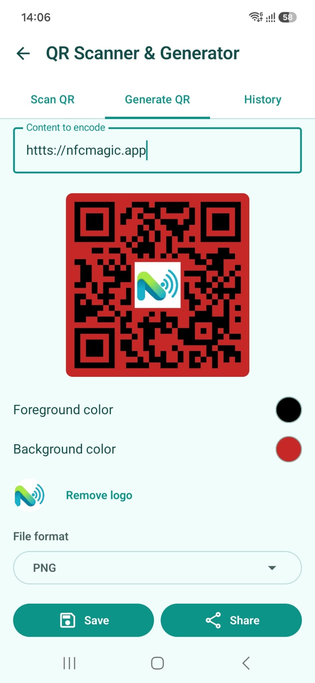
Create a static QR code for any public website or menu link in your browser.
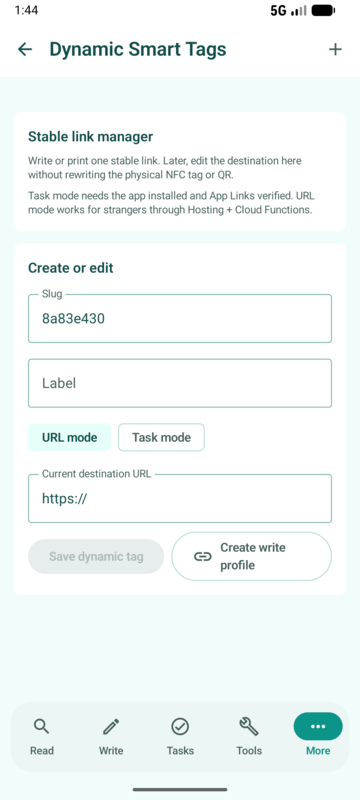
Learn how stable links keep installed table tags useful when destinations change.
Compare tap and camera access, then use both for maximum reach.
From menu to table
Launch a contactless restaurant menu in four steps
The creation workflow starts in the NFCMagic Android app. Guests need only a normal phone browser to view the published menu and place an order.
1
Create your restaurant
Add the restaurant name, logo, cover banner, promotional message, menu language, currency, address and phone number.
2
Build the menu
Create and reorder categories, then add food names, descriptions, ingredients, prices, square photographs and allergy warnings.
3
Publish and share
Publish the mobile menu, download its QR code, share the link, program it onto an NFC tag or download a PDF version.
4
Receive table orders
Manage incoming orders, service requests, statuses, sales summaries and closing reports from the app or secure dashboard.
Menu design
Everything needed for a clear, branded digital menu
Turn the information customers ask for most often into an organised menu that is fast to browse on a phone.
Restaurant identity
Add your restaurant name, logo and cover banner, then display a promotional message above the menu.
Language and currency
Select the menu language and currency so names, descriptions and prices are presented for the intended audience.
Flexible categories
Create, rename, reorder and remove categories for breakfast, starters, mains, desserts, drinks or any structure your venue uses.
Detailed menu items
Add a food name, multi-line description, ingredients, price and square photograph. Disable an unavailable item without deleting it.
Visible allergy warnings
Display allergy information with a clear red warning so important dietary notices are not buried in normal description text.
Contact and location
Show the restaurant address and phone number alongside the menu so guests can contact or locate the venue easily.
Digital table ordering
Let customers browse, order and ask for service
Customers browse the menu by category, select dishes, change quantities and review the total before sending anything to the restaurant. The order can include a table number so staff know where it belongs.
After submission, guests can follow the order status in real time. They can call a waiter at any point and request the bill after the order has been served, without searching for a separate page or application.
The customer view shows item totals and configured service charges and keeps an order summary ready to show a waiter. This gives both sides a shared reference if a table needs assistance.
Customer actions
- Browse categories and select dishes
- Change quantities and review totals
- Enter a table number and send the order
- Follow order status in real time
- Call a waiter at any time
- Request the bill after service
Restaurant management
Manage live orders and service requests from one dashboard
Owners and staff can work in the NFCMagic app or open a secure web dashboard generated by the app.
Live order queue
See incoming orders immediately and move each one through submitted, accepted, preparing, ready, served or cancelled.
Requests that stand out
Waiter calls and bill requests use clear visual highlighting so time-sensitive table requests are easy to identify.
Daily operations
Review the current-day order count and sales total, configure service charges and produce an end-of-day closing report.
Historical reporting
Review daily sales history with revenue, service-charge, order-count and average-order statistics.
Branded dashboard
Carry the restaurant logo and banner into the management experience so the active venue is clear to staff.
Secure dashboard access
Generate dashboard access from the app. Creating a new secure dashboard link replaces the previous access link.
QR code and NFC menu
Give every table a scan option and a tap option
The published menu has a permanent web link. NFCMagic can generate, download and share a QR code for that link, while the same link can be written to a compatible NFC tag.
Place the QR code and NFC tag on table cards, counters, takeaway packaging, hotel rooms or café displays. QR provides a visible camera route; NFC gives compatible phones a fast tap route. Both open the same mobile menu.
You can also download the menu as a PDF for printing, offline reference or sharing with customers who request a document.
One destination, three outputs
Share the live web link, download the QR code, write the link to an NFC tag and keep a PDF menu available when a document is useful.
Compare NFC and QRTrackable QR analytics
Measure how often the restaurant QR code is opened
Trackable QR codes can record each open and keep the resulting analytics private to the QR owner.
Scan activity
Count opens and view the date and time of each recorded scan before the visitor continues to the intended destination.
Location with permission
Record coordinates and reported accuracy only when the scanner grants browser location permission. Approximate location may also be estimated from public IP.
Available technical context
Where available, analytics may include public IP address, device type, operating system, browser, language, time zone and screen size.
Private owner reporting
Analytics are visible only to the QR owner. Restaurants should explain this collection to guests and link to the NFCMagic Privacy Policy.
Precise browser location is optional and is recorded only after the scanner grants permission. Standard users can try one Trackable QR code; additional trackable-code creation and management requires NFCMagic Pro.
Standard
Start with one restaurant
- Create and publish one restaurant menu
- Generate and share its menu QR code
- Use the menu link with an NFC tag
- Try the Trackable QR feature once
NFCMagic Pro
For ongoing menu and restaurant operations
- Edit an already published menu
- Access advanced restaurant management
- Create and manage additional trackable QR codes
- Use reporting and operational tools available to Pro
Restaurant Menu Maker FAQ
Questions before you publish
These answers separate the customer menu, restaurant dashboard, QR/NFC sharing and plan limits.
What is the NFCMagic Restaurant Menu Maker?
It is an Android-led menu publishing and ordering tool for restaurants, cafés and hospitality businesses. It creates a permanent mobile-friendly menu page that customers can open from a QR code, NFC tag or normal web link.
Can I add my restaurant logo, food photos and allergy information?
Yes. You can add a restaurant name, logo, cover banner, promotional message, address and phone number; organise items into reorderable categories; and add square photos, ingredients, prices, multi-line descriptions and clear red allergy warnings.
Can customers order from the digital menu?
Yes. Customers can select dishes, adjust quantities, review item totals and service charges, enter their table number, send the order, follow its status, call a waiter and request the bill.
How do restaurant staff receive and manage orders?
Staff can use NFCMagic or a secure web dashboard to receive live orders, move them through submitted, accepted, preparing, ready, served or cancelled states, and respond to waiter calls and bill requests.
Can I use both a QR code and an NFC tag for the same menu?
Yes. NFCMagic generates a downloadable menu QR code and provides the menu link, which can also be programmed onto a compatible NFC tag. Using both gives guests a camera option and a tap option.
Is the Restaurant Menu Maker free?
Standard users can create and publish one restaurant menu. Editing an already published menu and using advanced restaurant management features requires NFCMagic Pro.
How do I open the restaurant dashboard?
Secure web-dashboard access is generated from the NFCMagic Android app. Creating a new dashboard link replaces the previous access link, so an old shared access URL no longer remains the active management route.
How do I start using Restaurant Menu Maker?
Download NFCMagic from Google Play on an Android device, open Restaurant Menu Maker inside the app, add your restaurant and menu details, publish the menu, then share its QR code or write its link to an NFC tag.
Available inside the Android app
Download NFCMagic to create your restaurant menu
Install NFCMagic from Google Play, open Restaurant Menu Maker and publish your first mobile menu from the app. The secure management-dashboard link is also generated inside NFCMagic.