Direct answer
Learn how NFC works on iPhone, which models read tags in the background, where to tap, how Shortcuts automations work and why some scans fail.
What NFC on iPhone can do
An iPhone can read compatible NFC tags, open supported URI records, run a personal automation from a recognized tag identifier and, through an appropriate app, write supported NDEF content. These are separate workflows: a background website notification is not the same as an active Core NFC reader session or a Shortcuts trigger.
- Everyday reading
- A correctly encoded HTTPS tag can present a notification on supported iPhones without requiring the user to open a generic reader first.
- App-controlled access
- Core NFC apps can expose decoded records and protocol details that a background notification deliberately hides from casual users.
iPhone model and software boundaries
Apple introduced in-app NFC tag reading before it added continuous background detection. Current behavior therefore depends on the hardware generation, operating-system version, tag technology and whether the task uses background reading or an app-owned session. Check the exact device instead of assuming every NFC-capable iPhone behaves identically.
- Background generation
- Apple documents background tag reading for iPhone XS and later, while older supported devices rely more heavily on an explicit scanning session.
- Feature detection
- A responsible app checks Core NFC availability and explains the limitation rather than presenting an inert scan control.
Where to place the tag on an iPhone
The most reliable starting point is the upper edge or upper rear area of the iPhone, with the tag face roughly parallel to the phone. Hold both still for a moment. Sliding rapidly across the device often moves the inlay out of the small coupling zone before the tag finishes responding.
- Case interference
- Metal plates, magnetic wallets and thick accessories can weaken the field; remove them when diagnosing inconsistent reads.
- Tag construction
- A tiny antenna, a damaged inlay or an ordinary sticker attached directly to metal can fail even when the phone is working normally.
How background NFC notifications work
On supported iPhones, the system examines an NDEF message for a usable URI record and displays a notification. Tapping it routes a universal link to its associated app or opens an ordinary supported web URL. Background reading is intentionally restricted in several device states to avoid accidental or conflicting scans.
- Supported content
- Apple processes the first suitable URI record and supports common schemes such as HTTPS, mail, telephone and maps; custom schemes are not a background shortcut.
- Unavailable states
- Camera use, Wallet or Apple Pay activity, Airplane Mode and another active NFC reader session can temporarily suppress background reading.
Reading a tag inside an iPhone app
An app reader begins a time-limited session, asks the user to hold the phone near the item and receives NDEF or protocol-specific data through Core NFC. The app can then explain record types, capacity and state. Protected payment, transit or identity data does not become public merely because the phone detects the card.
- NDEF path
- Standard text and URI records offer the broadest interoperability across consumer tags and phone platforms.
- Protocol path
- ISO 7816, ISO 15693, FeliCa and MIFARE access requires technology-aware code, authorization and robust error handling.
Using an NFC tag in Shortcuts
Apple Shortcuts can use an NFC tag as a personal-automation trigger. During setup, the iPhone scans and names the tag; later taps match its identifier and run the configured actions under the selected confirmation rules. The automation does not need to interpret or overwrite the public NDEF payload stored on that tag.
- Identifier behavior
- Apple states that Shortcuts ignores tag contents other than the identifier for this trigger, so an existing URL tag can also become a personal cue.
- Permission behavior
- Individual actions may still require permission, device unlock or confirmation even when the NFC automation itself is allowed to run automatically.
Choosing a compatible tag
For web links and ordinary automations, widely available NFC Forum Type 2 tags such as genuine NTAG21x products are practical candidates. Choose the chip after calculating the payload, then choose an antenna and material for the final surface. A chip name alone does not guarantee good coupling or outdoor durability.
- Capacity
- A short HTTPS record often fits NTAG213, while multiple or longer records may justify NTAG215 or NTAG216 after measuring encoded size.
- Surface
- Use an on-metal construction for metal objects and validate the finished label in its installed position rather than testing only in free air.
Why an iPhone NFC scan fails
A failed scan is usually traceable to state, placement, content or tag construction. Turn the screen on, stop camera and Wallet activity, remove interfering accessories, move the upper phone area slowly across the tag and retry with a known-good NDEF label. Compare with an in-app reader when background behavior remains unclear.
- No notification
- The tag may not contain a supported URI record even though an NFC app can still read its other NDEF records.
- Intermittent result
- A detuned antenna or damaged connection can power briefly and disappear, producing a symptom that looks like a software problem.
iPhone versus Android NFC workflows
Both platforms support NFC Forum data, but their background routing, automation models and app permissions differ. NFCMagic is an Android toolkit and should never be presented as an iPhone application. An iPhone-focused workflow can still use compatible tags prepared on Android, provided the stored records are standard and tested on both platforms.
- Cross-platform payload
- A normal HTTPS NDEF record is a safer shared denominator than an app-specific raw command or unsupported custom scheme.
- Physical validation
- Test representative iPhones and Android devices because antenna position and system routing cannot be proven by an emulator or browser preview.
A safe deployment checklist
Before distributing an iPhone NFC experience, confirm the final tag material, encoded URL, redirect chain, accessible landing page and recovery path. Keep permanent tag locking until after content approval. Label the interaction clearly so users understand where to tap and what should happen instead of discovering an unexplained notification.
- Verification
- Read every pilot tag after writing and test the destination with an installed app, without the app and with a locked device where appropriate.
- Fallback
- Print a human-readable URL or QR code for devices, cases and accessibility situations where an NFC tap is inconvenient.
Quick reference
| Goal | Recommended iPhone path | Check |
|---|---|---|
| Open a website | HTTPS URI NDEF record | Background notification and redirect |
| Inspect records | Core NFC reader app | Type, capacity and lock state |
| Run a personal routine | Shortcuts NFC trigger | Permissions and confirmation |
| Serve all phones | NFC plus QR | Same accessible destination |
Related NFCMagic app screens
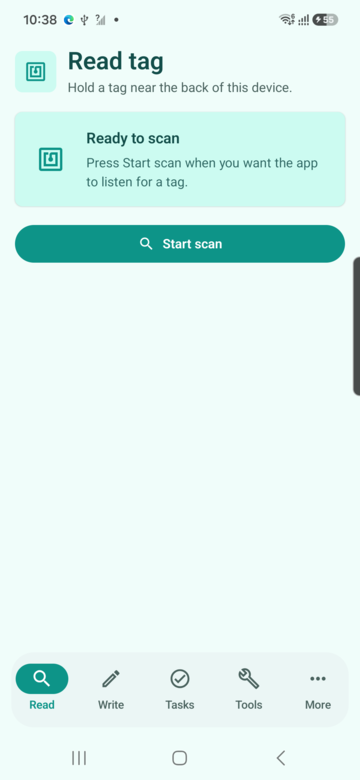
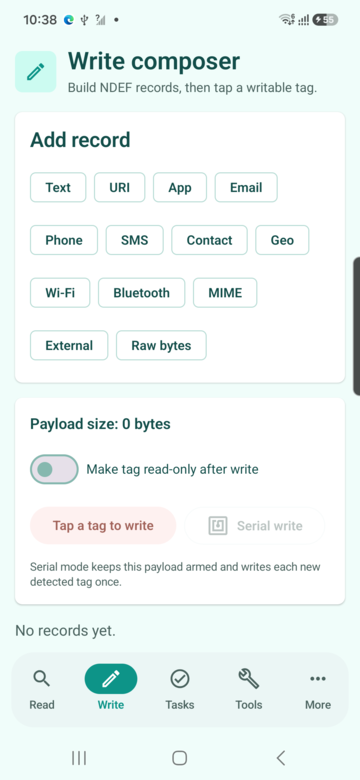
These screenshots connect this nfc iphone guide to the related Android workflow in NFCMagic. They document interface states; radio behavior still requires a physical Android device and real tags.
Frequently asked questions
Do iPhones have NFC?
Supported iPhones include NFC hardware, but background reading, writing and protocol access vary by model, software and application workflow.
Where is the iPhone NFC antenna?
Start at the upper edge or upper rear area, keep the tag parallel and move slowly if the first position does not couple.
Can NFCMagic be installed on iPhone?
No. NFCMagic is an Android app. The tags it writes can still use standard NDEF records that compatible iPhones understand.
Does an iPhone NFC automation read the tag text?
Apple documents the Shortcuts NFC trigger as using the tag identifier while ignoring the stored contents for the trigger match.
Primary technical sources
- Apple Developer: Core NFC — Official iPhone framework documentation for reading NDEF and protocol-specific tags and writing compatible tags.
- Apple Developer: Background tag reading — Official requirements for iPhone background NFC notifications, supported URI records and unavailable states.
- Apple Support: Automation triggers in Shortcuts — Official explanation of the NFC personal-automation trigger and how the scanned tag identifier is used.
- NFC Forum specifications — Primary specification index for NDEF, record types and interoperable NFC tag behavior.